The complete DroidDeck guide. Run Valve’s real ARM64 Steam client inside your Android phone — full Big Picture mode, your actual Steam library, and ARM64 Proton + FEX to run Windows PC games. No root. No bootloader unlock. Android stays exactly as it is.
DroidDeck 0.2.0 Beta — real ARM64 Steam client inside Gamescope · full Steam Deck-style launcher (MangoHud, NIS, Decky Loader) · Components Manager · built-in Win-FG + LSFG · Turnip driver modes · experimental HDR10 · optional LXQt desktop with emulators · no root. See what’s new →
Community-tested titles running through DroidDeck on top-end Snapdragon hardware. Scroll down for device-by-device benchmarks.
 100+ FPSHollow Knight: Silksong
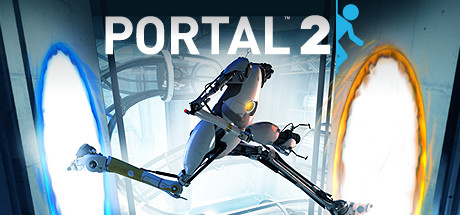 57–58 FPSPortal 2
 ~60 FPSCuphead
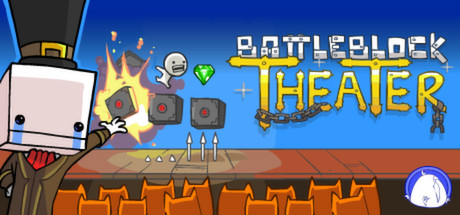 60–63 FPSBattleBlock Theater
 40–50 FPSEuro Truck Simulator 2
 PlayableGTA V · Single Player
 30 FPS lockNaruto Storm 4
 10–12 FPSThe Witcher 3 · DX12
Game images: official Steam store headers · results from the creators’ tests.
SteamOS itself is not officially installable on a normal Android phone the way you would flash an Android ROM. Projects like DroidDeck are what people actually mean by “SteamOS on Android.”
Valve officially supports SteamOS on specific hardware only. The officially “Powered by SteamOS” devices today are Steam Deck, Steam Machine, Steam Frame and Legion Go S. DroidDeck is an independent community project that brings Valve’s ARM64 Steam environment and the required Linux/compatibility stack into Android — it does not replace your operating system and is not affiliated with Valve.
“A SteamOS-like Steam gaming environment running inside Android, using Valve’s ARM64 Steam technology and compatibility layers.”
Is this actually SteamOS? It feels like it — you get the Steam interface, Big Picture, library functionality and much of the handheld experience — but Android itself hasn’t been replaced.Seven major feature additions, an LXQt Linux desktop with emulators, dual-screen support, a full session system and Gamescope 3.16.29 updates — released September 28, 2026. See the full breakdown →
DroidDeck 0.2.0 (beta) is currently the latest official release, with several supporting runtime updates shipped immediately before it. This isn’t just a new frontend — the underlying Linux and graphics stack has been actively updated too.
DroidDeck now runs Valve’s native ARM64 Steam client directly on Android, inside Gamescope. This isn’t a Winlator-style Steam installation — the Steam client itself is ARM64, while Windows games use:
Steam can also start offline after the first sign-in.
You can even set DroidDeck as your Android Home app — turning the phone’s normal launcher into a gaming launcher.
A new Components Manager handles the compatibility stack:
FEX presets are selectable per session — from Stability to Extreme, with TSO options.
Frame Generation is actually part of DroidDeck’s display/performance stack — not a bolt-on.
Import or download Turnip drivers for different modes, with per-mode resolution, aspect ratio and display configuration.
There’s even an “Exactly this panel” option for unusual 4:3 and 3:2 displays.
HDR10 support has been added for compatible displays — currently marked experimental.
One of the biggest features. DroidDeck can install an LXQt Linux desktop running through labwc and Vulkan. From there you can use:
Emulator games appear in the DroidDeck frontend with artwork and launch fullscreen. Notably, the project moved to ARMSX2 instead of PCSX2 — release notes claim substantially better performance in their testing.
For dual-screen Android handhelds, DroidDeck can use the second screen for:
— while Steam remains on the primary display.
The on-screen controls are fully editable.
Immediately before 0.2.0, the project released patched Gamescope 3.16.29 builds and wlroots 0.20.2. The Gamescope patches include ARM64 client fixes, Vulkan improvements, night-mode/color-temperature functionality and other compositor changes. So 0.2.0 isn’t just a new frontend — the underlying Linux/graphics stack has been actively updated.
Community testing right now is mixed. Users report that 0.2.0 is significantly better than earlier DroidDeck builds, but some are still seeing lower or less-consistent performance than GameHub, GameNative, Winlator or Bannerlator — along with higher power consumption in some cases. These are user reports, not standardized benchmarks. The interesting part: DroidDeck’s architecture is fundamentally different — developers say it uses Steam’s own ARM64 components rather than the traditional Winlator container/compatibility-layer approach.
The biggest development is Valve’s move toward ARM64. Valve needed technology capable of running traditional PC games on ARM — and DroidDeck makes that same stack accessible on phones.
Valve explicitly describes Steam Frame as a PC that runs SteamOS on a Snapdragon processor. Traditional Steam Deck hardware uses an x86-64 AMD chip, while Snapdragon phones use ARM64 — so Valve’s own documentation confirms the two key equations: most Windows games run through Proton, and x86 games are translated to ARM64 using FEX. This is effectively the technological foundation that makes Steam gaming on ARM possible.
The CPU translator. Translates x86 / x86-64 instructions to ARM64 while forwarding graphics and API calls to native host libraries, and uses code caching to reduce stuttering.
Windows → Linux. Windows games expect Windows APIs, DirectX, Windows libraries, filesystem behavior and input/audio components. Proton (modified Wine) provides that environment on Linux.
DirectX → Vulkan. Valve says Proton combines modified Wine with graphics implementations such as DXVK, which translates DirectX graphics calls to Vulkan.
DirectX 12 → Vulkan. Handles DirectX 12 titles, giving modern PC games a Vulkan-based graphics path on the Linux side.
The full DroidDeck stack — follow a game from tap to GPU. DroidDeck uses an x86 translation layer rather than running an x86 processor natively.
Snapdragon phones use Qualcomm Adreno GPUs. On supported devices, DroidDeck can use the Android/Linux Vulkan graphics stack, including Turnip drivers, giving PC games a direct path: DirectX → DXVK/VKD3D → Vulkan → Turnip → Adreno. That’s why Snapdragon devices are currently far more interesting for this technology than phones using Mali, Xclipse or PowerVR GPUs.
The official 0.2.0 requirements table — note which GPUs are explicitly unsupported — plus our recommended sweet spot for the best experience.
These are the requirements to run the environment — not a promise that every supported chip will run every game. The real limitation is game compatibility and driver behavior: a high-end Snapdragon can run the environment perfectly while one particular game still crashes, shows graphical errors or performs poorly.
Follow all ten steps in order. Total time: roughly 20–40 minutes depending on your internet connection.
Make sure you’re on Android 9 or newer with a Snapdragon chip using Adreno 730 or newer / 8xx-class graphics. Free up at least ~3 GB of storage (4.1 GB+ if you also want the desktop package).
Grab the DroidDeck 0.2.0 Beta APK from the official releases page. Optionally, also download the Desktop & Apps package (~1.1 GB) if you want Firefox, a file manager, a terminal and emulators.
Only download from the project’s official release channels. Avoid mirror sites and re-uploaded APKs.
Open Settings → Apps → Special app access → Install unknown apps, select your browser or file manager, and enable Allow from this source. The exact path varies slightly between manufacturers.
Open the downloaded APK, tap Install, and wait for the app to appear on your home screen. First launch will prepare the environment on your device.
On first launch, DroidDeck downloads the ~3 GB Linux ARM64 runtime. This is the heavy part — be patient and don’t force-close the app.
Use Wi-Fi, keep the app in the foreground, and ideally keep your phone plugged in while the runtime downloads.
Install the ~1.1 GB package inside DroidDeck to unlock the optional LXQt Linux desktop: Firefox, a file manager, a terminal, and a lineup of emulators including RPCS3, ARMSX2, Dolphin, Cemu, DuckStation, melonDS, PPSSPP and RetroArch.
Sign into your normal Steam account. Because this is the real ARM64 Steam client, your library, cloud saves, achievements and friends list all work through the standard Steam interface. Steam can also start offline after the first sign-in.
Use the Components Manager and pick an FEX preset per session — from Stability to Extreme, with TSO options. Start conservative — an aggressive preset can introduce crashes or compatibility problems, so the fastest-sounding option isn’t automatically the best.
Start with 2D, indie or older PC titles — they have the best chance of running smoothly. Set your resolution (480p / 720p / 1080p — lower reduces GPU workload) and test in order: launch → gameplay → save system.
Try different compatibility tools per game — Valve Proton, Proton Experimental, GE-Proton, proton-cachyos. Then test online multiplayer and anti-cheat as separate checks: a game launching does not mean its multiplayer works.
Kernel-level or unsupported anti-cheat (e.g. BattleEye in GTA Online) can block online play even when the single-player game runs perfectly. Test launch, gameplay, saves, online and anti-cheat separately.
Change one setting → restart & test → record the result → then change the next setting. That’s far more useful than changing five things simultaneously.
DroidDeck essentially gives you a handheld Steam interface on Android — powered by the real client, not a replica.
Your Steam games appear through the normal Steam interface — the actual client, not a workaround.
The interface is designed around controller and handheld navigation, just like a Steam Deck.
Sign into your normal Steam account. Games supporting Steam Cloud use Steam’s cloud infrastructure.
Steam achievements continue to work normally wherever the game itself supports them.
Steam’s social features are available through the Steam client — friends list and chat included.
Online functionality can work, but game-specific anti-cheat is a major limitation — see the tuning section.
DroidDeck isn’t limited to Steam. The optional LXQt desktop running through labwc and Vulkan provides Firefox, a file manager, a terminal and Linux applications — it’s effectively trying to give an Android phone a small Linux gaming PC environment, not just act as a Steam launcher.
The current project documentation lists support for major emulators:
DroidDeck can work with additional game-library locations. Depending on your setup you can use internal storage, USB storage, external drives, or SD cards on supported hardware. This matters because PC games easily consume tens or hundreds of gigabytes — the DroidDeck installation itself is relatively small compared with the games.
Four levers matter most: resolution, performance presets, Proton version and frame generation.
You aren’t locked to the phone’s native resolution. Use 480p, 720p, 1080p or a custom resolution where supported. Lowering resolution reduces GPU workload and can improve performance; on high-end phones you can experiment with higher resolutions if the game has enough GPU headroom.
Choose between Stability, Compatibility and Performance FEX configurations. Performance isn’t automatically the best choice — a game can run better on a conservative preset because aggressive FEX settings may introduce crashes or compatibility problems.
Games aren’t restricted to one Proton build. Experiment with Valve Proton, Proton Experimental, GE-Proton and proton-cachyos. One game might work on Experimental while another requires GE-Proton — that’s normal Linux gaming behavior.
v0.2.0 ships with built-in Win-FG and LSFG (using your own Lossless Scaling) at 2×–4×. But FG doesn’t make the game actually render at that FPS — 30 real FPS + generated frames looks smoother than 30 real FPS, while the simulation still runs around 30. Aggressive multipliers can add artifacts, latency, broken UI, ghosting and unstable frame pacing. Treat it as an optional enhancement, not a magic FPS multiplier.
A PC game can run perfectly and still fail online because its anti-cheat doesn’t support the environment. Kernel-level or unsupported anti-cheat systems are particularly problematic. When testing a game, separately check: game launch → gameplay → save system → online multiplayer → anti-cheat.
2D games, indie titles, older PC and older 3D games. Best chance of running smoothly.
Potentially very playable on high-end Snapdragon hardware with appropriate settings.
Much harder — limited by CPU translation overhead, GPU power, VRAM/shared memory, driver compatibility, shader compilation, RAM, thermal throttling and Proton compatibility.
“Steam games on Android” does not mean “every Steam game runs at 60 FPS.”
Because DroidDeck uses the actual Steam ecosystem, Rockstar titles can use their normal PC launch ecosystem rather than being treated as manually installed executables — an advantage over some Android Windows-gaming environments, with Rockstar cloud saves working in tests. But GTA Online is a separate issue because of its anti-cheat requirements: BattleEye blocks it. Never say “GTA V works, therefore GTA Online works” — those are two different compatibility tests.
The same principle applies — the Steam/PC launcher ecosystem helps because DroidDeck isn’t merely pretending to be a standalone Windows game folder. However, RDR2 is extremely demanding: CPU translation + Proton + Vulkan + mobile GPU limitations stack up quickly. A game launching successfully doesn’t mean it will provide a playable frame rate.
Results are from the creators’ and community tests. The device matters a lot — so every result is tagged. Remember: this is beta software, and numbers change with every release.
Top-end Snapdragon
BattleBlock Theater60–63 FPS
Cuphead1080p playable on another device~60 FPS
Hollow Knight: SilksongNeeded Proton CachyOS100+ FPS
Portal 2Ultra settings57–58 FPS
Euro Truck Simulator 240–50 FPS
Naruto Storm 4Locked 30 · 60 in menus · online works30 FPS lock
GTA V (single player)Runs quite well · Rockstar cloud savesPlayable
The Witcher 3 (DX12)Even with FSR on Quality10–12 FPS
Community tests
iQOO (8 Gen 2) — Portal 2Low settings, some stutters62–67 FPS
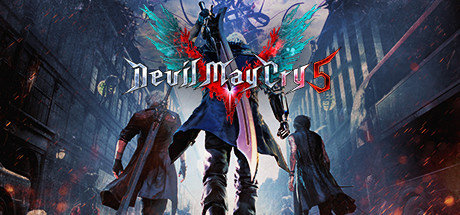 iQOO (8 Gen 2) — Devil May Cry 5Crashed
Poco F5 — Portal 2Smoother than the 8 Gen 2 testPlayable
iQOO (8 Gen 2) — Devil May Cry 5Crashed
Poco F5 — Portal 2Smoother than the 8 Gen 2 testPlayable
 Poco F5 — Black Ops 2Reached start screen, then crashedCrashed
Galaxy S24 Ultra (8 Gen 3) — Portal 2Default settings, then tuned33 → ~50–60
Poco F5 — Black Ops 2Reached start screen, then crashedCrashed
Galaxy S24 Ultra (8 Gen 3) — Portal 2Default settings, then tuned33 → ~50–60
 Galaxy S24 Ultra — Tricky TowersWon’t launch
Separate OS — shown for reference
 Persona 4 Golden1600×900, low — steadyStable
 Shenmue I & IIGood
 Spin Rhythm XDGood
 BioShock Infinite30–45 FPS
 Dragon Quest 3 HD-2DChoppy
 Crash BandicootOnly in offline modeIssues
Valve’s official “Powered by SteamOS” devices today: Steam Deck · Steam Machine · Steam Frame · Legion Go S.
| Feature | Official SteamOS | DroidDeck on Android |
|---|---|---|
| SteamOS itself | Yes | No |
| Android remains installed | No | Yes |
| Steam client | Yes | Yes |
| ARM64 Steam | Steam Frame | Yes |
| FEX | Steam Frame | Yes |
| Proton | Yes | Yes |
| Big Picture | Yes | Yes |
| Linux desktop | Yes | Yes, optional |
| Root required | Device dependent | No |
| Bootloader unlock | Device dependent | No |
| Replace Android | Possible on supported PC hardware | No |
| Snapdragon support | Steam Frame | Targeted |
| Official Valve Android support | No | Community project |
Probably the most important comparison for Android gamers — three different philosophies of PC gaming on a phone.
DroidDeck = Steam experience · GameHub = streamlined PC gaming · Winlator = manual Windows gaming environment. That’s an oversimplification — but a useful way to understand the difference.
Not officially. Valve has been investing heavily in the software required to make Windows games run on ARM, and has discussed its broader ARM strategy publicly — including work around FEX and Proton. But Valve has not announced a SteamOS smartphone. The accurate statement: Valve is developing the technology required for SteamOS and PC games to work effectively on ARM hardware, while community projects such as DroidDeck are bringing parts of that ecosystem to Android phones.
DroidDeck is still early — the current 0.2.0 release is explicitly a beta. Know what you’re getting into.
No. DroidDeck is a community project that runs Valve’s real ARM64 Steam client inside an Android-hosted Linux environment. Official SteamOS is only supported on Valve-designated hardware: Steam Deck, Steam Machine, Steam Frame and Legion Go S.
No. Your phone remains an Android phone — DroidDeck runs as an application and Android stays fully intact.
No root and no bootloader unlock are required. That’s one of the project’s biggest advantages over flashing-based approaches.
0.2.0 runs the real ARM64 Steam client inside Gamescope, adds a full Steam Deck-style launcher (MangoHud, NIS, Decky Loader, battery info), a Components Manager, built-in Win-FG and LSFG frame generation, Turnip driver modes, experimental HDR10, an optional LXQt desktop with emulators (ARMSX2 instead of PCSX2), dual-screen support, a persistent session system, and patched Gamescope 3.16.29 + wlroots 0.20.2 underneath.
No. Compatibility varies dramatically. Lightweight 2D, indie and older titles have the best chance; mid-range games can be very playable on high-end Snapdragon; modern AAA titles are much harder due to CPU translation overhead, GPU limits, VRAM, shader compilation and thermal throttling.
GTA Online is currently blocked by BattleEye anti-cheat, even though GTA V single-player runs well. Kernel-level or unsupported anti-cheat is problematic in general — always test single-player and online modes as two separate compatibility tests.
No. The official 0.2.0 requirements explicitly list Mali, Xclipse, Adreno 710 and PowerVR as unsupported. DroidDeck targets Snapdragon devices with Adreno 730+ GPUs because the Turnip Vulkan driver path (DirectX → DXVK/VKD3D → Vulkan → Turnip → Adreno) is what makes PC graphics work well.
Community reports are mixed. 0.2.0 is significantly better than earlier DroidDeck builds, but some users still see lower or less-consistent performance than GameHub, GameNative, Winlator or Bannerlator, with higher power consumption in some cases. These are user reports, not standardized benchmarks. The architecture is fundamentally different — it uses Steam’s own ARM64 components rather than a Winlator-style container approach.
Install a lightweight game, use the Stability preset at 720p, and change one setting at a time — restart, test, record the result, then move to the next. Good first tests include Cuphead, Portal 2 and Hollow Knight: Silksong.
Always download from the project’s official release channels.

Downloads the Linux ARM64 runtime on first launch
Adds the optional LXQt desktop: Firefox, file manager, terminal, Linux applications and emulators — RPCS3, ARMSX2, Dolphin, Cemu, DuckStation, melonDS, PPSSPP and RetroArch.
Install inside DroidDeck after the main setupFollow development, report compatibility results, and get help from the community on the official channels.
Verify all links from the official source before installingDroidDeck is an independent community project and is not affiliated with Valve Corporation. Steam, SteamOS, Steam Deck and Steam Frame are trademarks of Valve Corporation. This is beta software — expect bugs, back up your data, and download only from official channels.